2. Installation
2.1. Requirements
2.1.1. Hardware Requirements
Minimum hardware requirements implies
- x86–64 compatible CPU
- 1 GB RAM
- 20 GB available hard disk space
For a fully operational system, the recommended hardware requirements are:
- x86–64 or compatible CPU
- 4 GB RAM
- 50 GB available hard disk space
2.1.2. Software Requirements
THERMOLIDAR software has been developed as a QGIS plug-in so the final user gets access to lots of GIS capabilities freely. This implies QGIS and its Processing plug-in to be installed. The oldest QGIS version supported by the THERMOLIDAR plug-in is QGIS 2.0.1 Dufour, and the oldest version for Processing plug-in is 2.0.
For the THERMOLIDAR software to run, the plug-in requires some external libraries that need to be installed previously:
- R
- SPDLib
- RSGISLib
R is a free programming language and software environment for statistical computing, SPDLib is a set of open source software tools for processing laser scanning data, and RSGISLib is a collection of tools for processing remote sensing and GIS data. R is used by the Data Analysis modules, while SPDLib and RSGISLib are used by the Data Processing modules.
2.1.2.1. Installing SPDlib
Warning
This has to be improve and add some Windows info
The notes below hopefully provide some useful details on the process for installing SPDLib. These notes are intended for people compiling the software on a UNIX platform such as Mac OSX, Linux or Solaris (these are the platforms on which the software has been tested).
To compile the software (and the pre-requisites) you will need a C++ compiler, we use the GNU GCC compilers but the software has also been tested and compiles without a problem using the SunPro compiler on Solaris and the Intel x86 compilers.
You will also need to have mercurial installed to download the latest version of the SPDLib source code, cmake to configure the source code before compilation.
2.1.2.1.1. Getting the SPDlib Source Code
The SPDLib source code is hosted within a Mercurial repository on bitbucket. To clone the source code into a folder spdlib run the following command:
hg clone https://bitbucket.org/petebunting/spdlib spdlib
2.1.2.1.2. Compiling SPDlib
If libraries are not installed within /usr/local then the path needs to be specified using the variables available on CMake listed below.
$ cmake -D CMAKE_INSTALL_PREFIX=/usr/local \
        -D HDF5_INCLUDE_DIR=/usr/local/include \
        -D HDF5_LIB_PATH=/usr/local/lib \
        -D LIBLAS_INCLUDE_DIR=/usr/local/include \
        -D LIBLAS_LIB_PATH=/usr/local/lib\
        -D GSL_INCLUDE_DIR=/usr/local/include \
        -D GSL_LIB_PATH=/usr/local/lib \
        -D CGAL_INCLUDE_DIR=/usr/local/include \
        -D CGAL_LIB_PATH=/usr/local/lib \
        -D BOOST_INCLUDE_DIR=/usr/local/include \
        -D BOOST_LIB_PATH=/usr/local/lib \
        -D GDAL_INCLUDE_DIR=/usr/local/include \
        -D GDAL_LIB_PATH=/usr/local/lib \
        -D XERCESC_INCLUDE_DIR=/usr/local/include \
        -D XERCESC_LIB_PATH=/usr/local/lib \
        -D GMP_INCLUDE_DIR=/usr/local/include \
        -D GMP_LIB_PATH=/usr/local/lib \
        -D MPFR_INCLUDE_DIR=/usr/local/include \
        -D MPFR_LIB_PATH=/usr/local/lib \
        -D CMAKE_VERBOSE_MAKEFILE=ON \

$ make
$ make install
2.1.2.1.3. Pre-requisites
The SPDLib software library has a number of software prerequisites, which are required to built the software.
During the development process, to date, the following libraries have been included:
- Boost (http://www.boost.org) (oldest Version 1.49)
- HDF5 (http://www.hdfgroup.org) (oldest Version 1.8.2)
- GNU Scientific Library (GSL; http://www.gnu.org/software/gsl) (oldest Version 1.14)
- Xerces-C (http://xerces.apache.org/xerces-c) (oldest Version 3.1.1)
- GDAL/OGR (http://www.gdal.org) (oldest Version 1.7)
- LibLAS (http://www.liblas.org) (oldest Version 1.6)
- CGAL (http://www.cgal.org) (oldest Version 3.8)
2.2. Installing and Configuring ThermoLiDAR software
2.2.1. Installation
The source code of the ThermoLiDAR software development is located in a private bitbucket repository. The easiest to get ThermoLiDAR plug-in is to download it from the official repository (https://bitbucket.org/thermolidar/thermolidar/downloads). Once the file is downloaded just unzip it into your system QGIS plug-ins folder. This plug-ins folder should be located in:
%HOMEDRIVE\%HOMEPATH\.qgis2\python\plugins
in Windows systems and, for Unix-based systems:
~/.qgis2/python/plugins
Finally, the unzip folder has to be renamed to thermolidar.
Alternatively, the software can be directly clone from the repository to our local QGIS plug-in folder using git:
$ git clone http://bitbucket.org/thermolidar/thermolidar.git ~/.qgis2/python/plugins/thermolidar
2.2.2. Configuration
Start QGIS and make sure the Processing Toolbox is enable and the Advanced interface is selected (at the bottom). The Processing Toolbox should look like this:
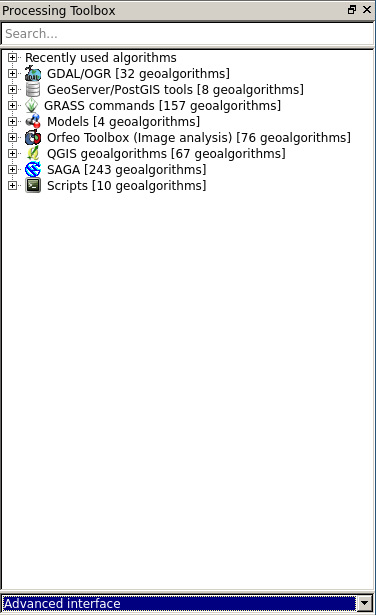
Processing Toolbox
Manage and Install Plugins is placed into the Plugins menu in QGIS
Now the plugin must be enabled in the Installed tab within the Plugins > Manager and Install Plugin menu.
From the Manage and Install Plugins... within the Plugins menu, select the ThermoLiDAR plug-in:

ThermoLiDAR plug-in is enabled in the Installed tab within the Manage and Install Plugins...
Once QGIS load ThermoLiDAR, it appears within the Processing Toolbox
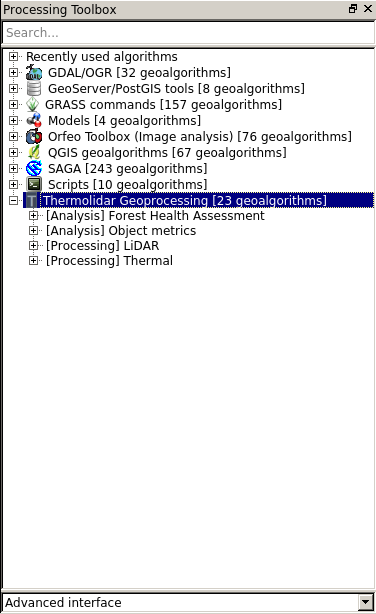
ThermoLiDAR fully integrated into Processing Toolbox
However, to use the plug-in SPDLib and R software have to be enabled and visible from QGIS. Otherwise the user will get an error message that denies running any tool:
Warning
SPDTools folder is not configured. Please, consider to configure it before running SPDTools algorithms.
To activate them, open the Processing > Options and configuration > Providers menu. First, enable the R statistical package and provide the R Scripts Folder and the R folder. R Scripts Folder specifies where the R scripts are located, C:\Users\admin\.qgis2\processing\scripts, and R folder specifies where R is installed, C:\Program Files\R\R-XXX (XXX stands for the current R version).
Finally, activate the enable the ThermoLiDAR plug-in and supplies the folder of the SPDLib binaries, commonly C:\SPDLib\bin in Windows systems and /usr/local/bin
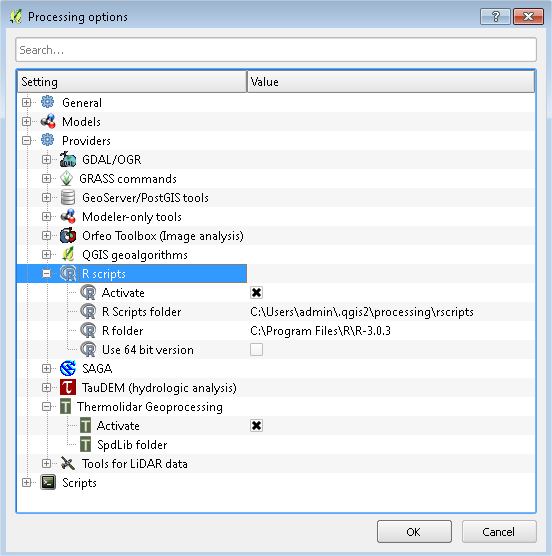
Visualization of Processing > Options and configuration window